
In addition to hosting a Giving or Volunteering campaign, we are introducing engagement Drives! Now, if employees want to give back by donating physical items, their progress, participation, and impact can all be tracked on the Percent Pledge platform. Drives are fully customizable, admins can indicate what type of drive is being hosted and the items the drive is accepting.
Just like a Giving or Volunteering campaign, a Drive campaign is a time-boxed push that rallies a company's employees to participate.
Click here to view the full guide.
Types of Drive CampaignsPopular donation drives include:
- Clothing
- School supplies
- Coats/winter gear
- Nonperishable food
- Gifts (holiday gift drive)
- Any physical item of your choosing!
Global Admins or users with Campaign Manager permissions can create and manage a Drive campaign. Admins can generate comms for the campaign to share with other team members and raise awareness.
What Details Can Admins Provide
Admins can customize the following details:
- Campaign name
- Description
- Items accepted
- Campaign image
- Recognition Wall (names shown vs. anonymized)
- Participation goals (items donated and employee participation)
- Start date
- End date
|
|
|
“Edit Campaign” link is in the top bar of a Campaign Page when viewing as an admin. |
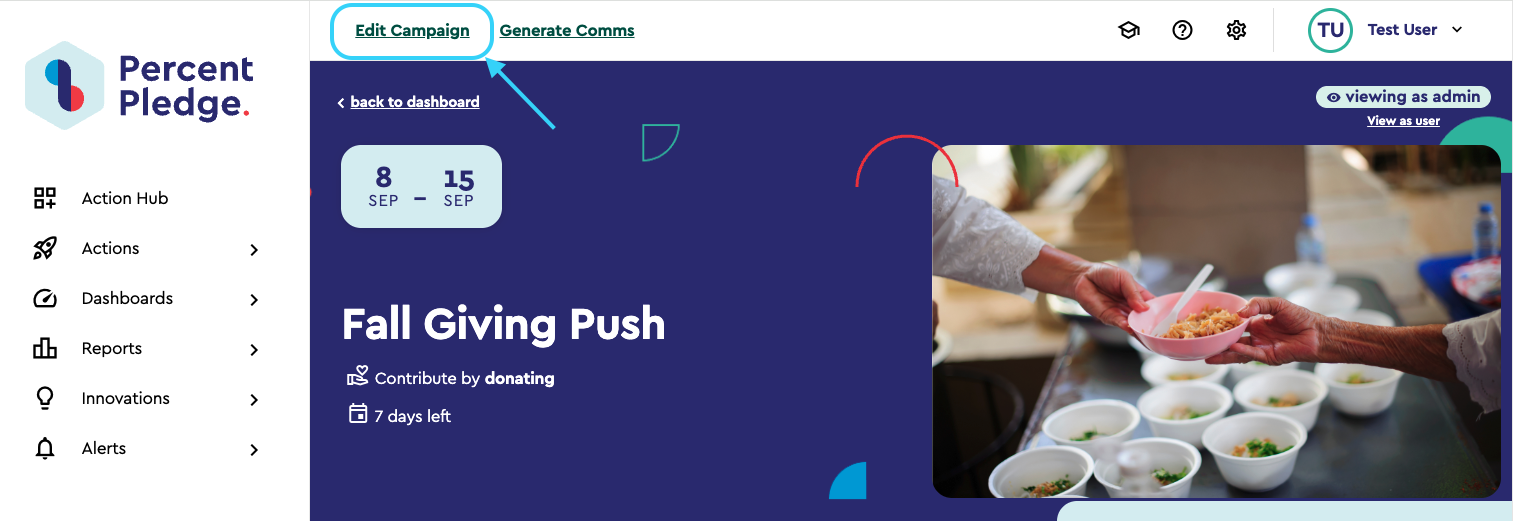
The admin can change:
• Campaign name
• Campaign image
• Description
• Recognition Wall — names shown or anonymized
Note: Admins will need to work with their Social Impact Manager to edit the start and end dates or to add item types to the drive.
Adding Item Types
Item types are the options employees pick from when logging a contribution — coats, canned goods, toys, etc. The admin can search for an item type their company already used or type a new one. At least one selection is required.
A “Preview user contribution form” link opens a live preview of what employees will see.
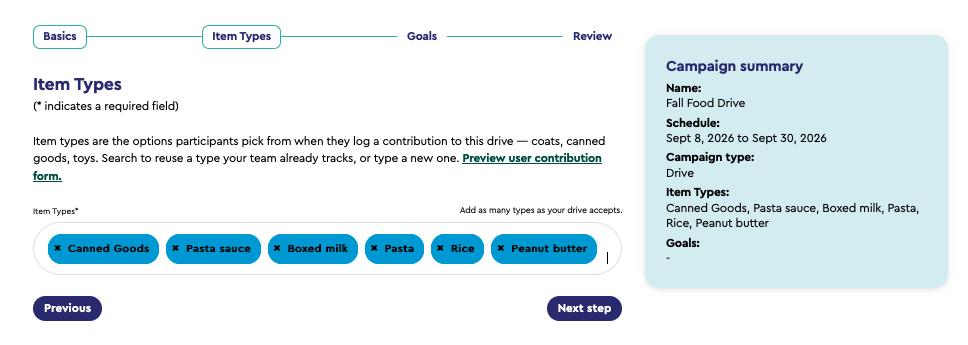
Admins can pick from a drop-down of previous item types, or they can type in a new item type and hit “enter” to add it.
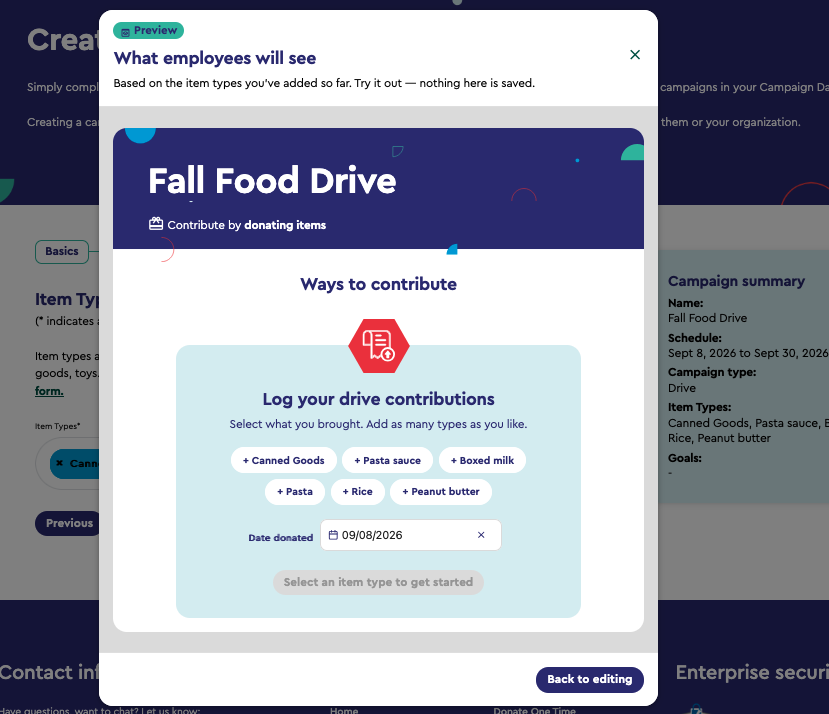
Clicking the “Preview” link shows the admin how an employee will log their contributions.
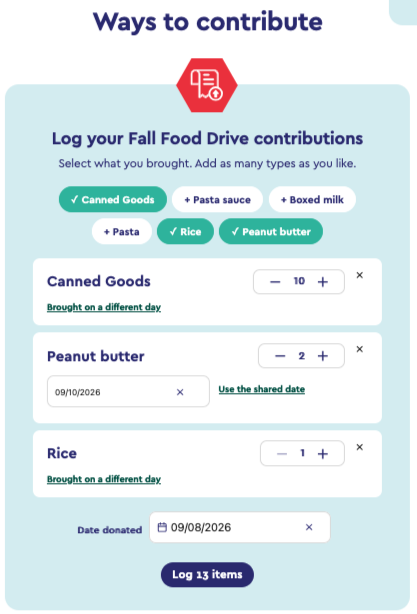
How employees log a drive contributionDrive campaigns replace the tiles with a contribution form headed "Log your (Campaign Name) contributions." The employee:
• Clicks the item types they brought.
• Sets a count for each with the +/− stepper.
• Picks a Date donated — one shared date for the whole submission, restricted to the campaign window. Any single row can be given its own date with "Brought on a different day."
• Submits with the Log (X) items button.
They get a confirmation email, and the page reloads with their contribution counted. A single submission can carry up to 50 contributions; beyond that the form asks them to split it up.
|
|
|
Employees can log multiple drive contributions at once. |
On-platform administration and ongoing management of campaigns
The campaign dashboard
Admin Dashboard > Campaigns is the admin's home for this feature. It shows:
• Upcoming campaigns as cards, badged with their status (active / scheduled / completed) and their type (giving / volunteering / drive)
• Past campaigns
• All-time stats and the charities the company's campaigns have supported
The campaign page (admin view)Opening a campaign shows the same page employees see, plus admin-only pieces: a "viewing as admin" badge, a "View as user" link, all goals (including admin-only ones) in the Campaign progress sidebar, and the participation report.